
Knowledgebase
August 13th - PEAK Advanced PCSOT Training Webinar registration now available!
Learn More
Question Last Updated on: 8/12/2026
LXEdge works with OneDrive and automatically detects the My LXEdge folder when it is stored in Documents or another folder backed up by the OneDrive "Back up important PC folders to OneDrive" feature.
Important: You do not need to change any LXEdge settings. If the My LXEdge folder is stored in OneDrive, make sure the "Always keep on this device" setting is enabled for the folder.
Additionally, do not use the software on multiple computers at the same time with the same data folder synced through OneDrive. This configuration is not supported.
If you are unsure whether your My LXEdge folder is stored in OneDrive, check it in File Explorer:
If you see a blue cloud icon or green checkmark icon in the Status column next to My LXEdge, the folder is stored in OneDrive.
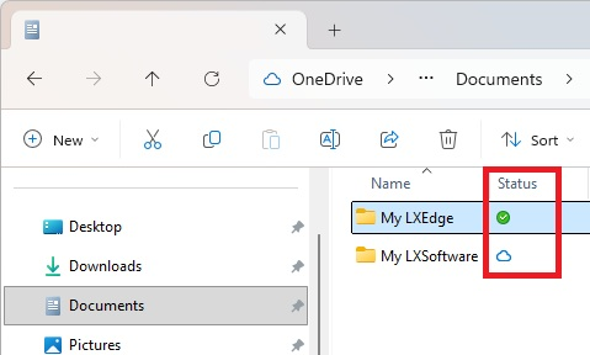
Use the "Always keep on this device" setting to prevent OneDrive from making files in the My LXEdge folder online-only.
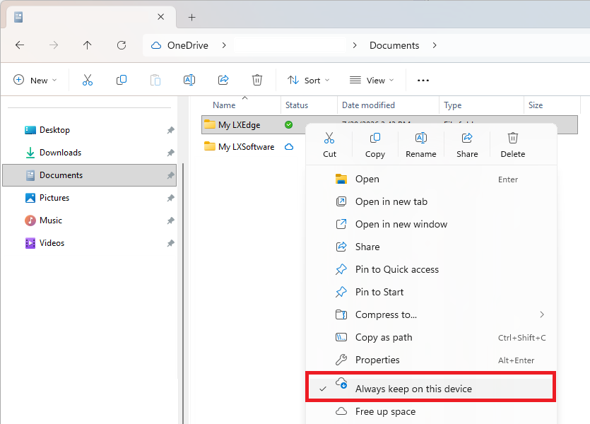
The "Always keep on this device" setting prevents OneDrive from making files in the My LXEdge folder online-only. Without this setting, OneDrive may make files online-only to free up space on the computer. An online-only file remains in OneDrive but is not downloaded to the computer. When LXEdge needs an online-only file, OneDrive must download it before LXEdge can continue. LXEdge may appear frozen or unresponsive while the file is downloading.
Unable find an answer to the question that you looking for in our FAQ section? Submit your question directly to our customer service representatives.
Join our email list for up-to-date product news Sign Me Up!

3700 Sagamore Pkwy N
Lafayette, IN 47904
Phone: (765) 423-1505
Fax: (765) 423-4111
info@lafayetteinstrument.com
Copyright © 2009 - 2026 Lafayette Instrument Company. All Rights Reserved.